Java 8 Lambda Expressions quick explanation

To get started with Lambda expressions in Java 8 I have found that there was no simple explanation, so here is it its basic form for everyone to understand.
First of all look at this implementation of the Animal Interface. you will notice there are lots of unnecessary boilerplate code.
They are all Highlighted in the code:

  
package showlambda;

interface Animal {
    void eat();
}

class Dog implements Animal {
    @Override
    public void eat() {
        System.out.println("Feed me Anything");
    }
}

class Cat implements Animal {
    @Override
    public void eat() {
        System.out.println("Feed Me Meat");
    }
}

public class ShowLambda {
    public static void main(String[] args) {
        Cat c = new Cat();
        c.eat();
        Dog d = new Dog();
        d.eat();
    }
    
}
We dont have to declare the classes we can create one Anonymously like so:

package showlambda;

interface Animal {
    void eat();
}

public class ShowLambda {
    public static void main(String[] args) {
        Animal anonymousdog;
        Animal anonymouscat;
        anonymousdog = new Animal() {
            @Override
            public void eat() {
                System.out.println("Feed me Anything anonymously :-)") ;
            }
            
        };
        anonymouscat = new Animal() {
            @Override
            public void eat() {
                System.out.println("Feed me Meat anonymously :-)") ;
            }
        };
        anonymousdog.eat();
        anonymouscat.eat();
    }
}

But we are still stuck with all the boilerplate code.
The only thing that we really require is the implementation code and this is where the lambda comes in,
Now we don’t have to mention the eat method since there is only one:

package showlambda;

@FunctionalInterface
interface Animal {
    void eat();
}

public class ShowLambda {
    public static void main(String[] args) {
        Animal anonymousdog;
        Animal anonymouscat;
        anonymousdog = () -> 
            {
                System.out.println("Feed me Anything Yeah Lambda :-)") ;
            };
        anonymouscat = () -> 
            {
                System.out.println("Feed me Meat Yeah Lambda :-)") ;
            };
        anonymousdog.eat();
        anonymouscat.eat();
        
    }
}

Since there is just one line of code to implement eat we can even simplify it more:

package showlambda;

@FunctionalInterface
interface Animal {
    void eat();
}

public class ShowLambda {
    public static void main(String[] args) {
        Animal anonymousdog;
        Animal anonymouscat;
        anonymousdog = () -> System.out.println("Feed me Anything Yeah Lambda :-)") ;
        anonymouscat = () -> System.out.println("Feed me Meat Yeah Lambda :-)");
        anonymousdog.eat();
        anonymouscat.eat();
        
    }
}
Now to show how to implement a parameter:

package showlambda;

interface Animal{
    void eat(String food);
}

public class ShowLambda {
    public static void main(String[] args) {
        Animal anonymousdog;
        Animal anonymouscat;
        anonymousdog = (food) -> System.out.println("Feed me Anything Yeah Lambda :-) Parameter :" + food) ;
        anonymouscat = (f) -> System.out.println("Feed me Meat Yeah Lambda :-) Parameter :" + f);
        anonymousdog.eat("Dog Food");
        anonymouscat.eat("Cat Food");
        
    }
}
Few lines of code to show all the basics of python datetime handling

Here is a few lines of code to show :
Line 3. How to Create a datetime object on a certain time
Line 4. How to subtract or add time to another time and how to compare datetime objects
Line 5. How to convert datetime to string
Line 6. How to get the current time

import datetime

lasttime = datetime.datetime(1900,1,1,0,0,0)

while True :
    if lasttime  < datetime.datetime.now() - datetime.timedelta(seconds=30) :
        print("30 Secornds has passed Date Now is :" + datetime.datetime.now().strftime("%A %d %B %Y %I:%M:%S%p") )
        lasttime = datetime.datetime.now()

Delete files that are older than 10 (or x) days

Here is a simple python script to delete files from the current directory that are older than 10 days,
you probably need to customize it a little to specify the files to delete.


#!/usr/bin/python

# run by crontab
# removes any files in current folder older than days_old days

import os, sys, time

def get_file_directory(file):
    return os.path.dirname(os.path.abspath(file))
    
now = time.time()
days_old = 1 #change this to how many days old files to delete
cutoff = now - (days_old * 86400)
files = os.listdir(get_file_directory(__file__))
file_path = get_file_directory(__file__)
for xfile in files:
        print("Check :" + xfile)
        if xfile.startswith('0000'):    #My Files stated with 0000 you can add other criteria here maybe xfile.endswith('.OLD')
            fullFile = os.path.join(str(file_path), xfile)
            #print("Path : " + fullFile)  Remove the comment to list all the files to be deleted
            if os.path.isfile(fullFile):
                t = os.stat(fullFile)
                c = t.st_ctime
                # delete file if older than [days_old] days
                if c < cutoff:
                    print("Will Remove " +fullFile + "to go ahead and remove the files please remove the # in the next line") #for now we will just print it
                    #os.remove(fullFile)  #comment this line to delete the files
            

Thanks to https://stackoverflow.com/users/1465704/xman-classical for the outline

PHP 7.0 Apache Oracle 12 Instantclient OCI8 install apt-get

If you need to do this from scratch I have followed these how-to-install-and-configure-php-70-or-php-71-on-ubuntu-16-04 insructions to install PHP7.0 and apache.

Once installed then
Follow these instructions to compile oci8 extentions Oracle tech note OCI8

Download the instant client from oracle’s web site here : Oracle instant client download
I downloaded the .ZIP files since I dont have RPM installed.
I then extracted it to ~/Downloads/instantclient_12_2
NOTE: Download the instantclient-basic-linux.x64-12.2.0.1.0.zip and instantclient-sdk-linux.x64-12.2.0.1.0.zip

cd ~Downloads
unzip instantclient-basic-linux.x64-12.2.0.1.0.zip
unzip instantclient-sdk-linux.x64-12.2.0.1.0.zip

Now we need to create the paths

sudo mkdir /usr/lib/oracle
sudo mkdir /usr/lib/oracle/12.2
sudo mkdir /usr/lib/oracle/12.2/client64
sudo mkdir /usr/lib/oracle/12.2/client64/lib
cd ~/Downloads/instantclient_12_2
sudo cp * /usr/lib/oracle/12.2/client64/lib/
cd /usr/lib/oracle/12.2/client64/lib/
ln -s libclntsh.so.12.1 libclntsh.so
sudo mkdir /usr/include/oracle
sudo mkdir /usr/include/oracle/12.2
sudo mkdir /usr/include/oracle/12.2/client64
cd ~/Downloads/instantclient_12_2/sdk/include
sudo cp * /usr/include/oracle/12.2/client64
export ORACLE_HOME=/usr/lib/oracle/12.2

Edit ld.so.conf and include oracle libs. Add a file called oracle.conf under /etc/ld.so.conf.d

cd /etc/ld.so.conf.d
sudo vi oracle.conf
PRESS ESC i
/usr/lib/oracle/12.2/client64/lib
PRESS ESC :wq

Now to download and compile OCI8

sudo pecl install oci8 --with-oci8=instantclient,/usr/lib/oracle/12.2/client64/lib

On My machine it compiled it under ‘/usr/lib/php/20151012/oci8.so’ but look at the last few lines it should echo it.

First lets install a page to test that the configuration works.

sudo vi /var/www/html/t.php ( or xed /var/www/html/t.php if you dont know vi)
Press ESC i and paste

Press ESC :qw

now open your favorite browser and go to http://localhost/t.php and you should see a information page of php

to configure php do:

cd /etc/php/7.0/mods-available
vi oci8.ini

Edit oci8.ini with content

extension=oci8.so

Now restart

sudo service apache2 restart

My Installation now gave an error

apachectl configtest
if you get an error about libaio.so.1: cannot open shared object file: No such file or directory

sudo apt-get install libaio1 libaio-dev

Now we need to give the path to the libraries.
Edit /etc/apache2/envvars and add the flowing to the bottom of the file

ORACLE_HOME=/usr/lib/oracle/12.2/client64
LD_LIBRARY_PATH=/usr/lib/oracle/12.2/client64/lib
LD_LIBRARY_PATH64=/usr/lib/oracle/12.2/client64/lib/
#TNS_ADMIN=$ORACLE_HOME/network/admin
#NLS_LANG=AMERICAN_AMERICA.WE8MSWIN1252
#ORACLE_SID=your_db

To Test

php --ri oci8

PHP Active Directory Authentication using Self Signed SSL Cert (LDAPS://)

Here is the steps I followed to get the domain controller’s SSL CA cert and configure PHP with LDAP to do LDAPS authentication on Active Directory (Domain Controller AD).

  • First let get the CA cert. If you dont have it, it can be done via openssl.
  • To get the CA cert

    openssl s_client -connect YOUR_WINDOWS_DOMAIN_NAME.YOUR_DOMAIN_EXTENTION:636

    you will see all the values but what we are interested in is the –BEGIN CERTIFICATE — and –END CERTIFICATE—
    so save all the output to a file :

    openssl s_client -connect YOUR_WINDOWS_DOMAIN_NAME.YOUR_DOMAIN_EXTENTION:636 > ca_cert.pem

    then edit it: vi ca_cert.pem (or xed ca_cert.pem) and delete everything only leaving the –BEGIN CERTIFICATE — …. –END CERTIFICATE— including the –BEGIN CERTIFICATE — and –END CERTIFICATE— tages.

    Rename the file to a more descriptive name for your CA
    mv ca_cert.pem MyCA.pem

    To make sure you have the right Domain you can always do a nslookup to verify the domain controllers.
    nslookup
    set type=ANY
    your_microsoft_domain.your_web_domain.com

  • Now to install the new CA cert on the server
  • To see where the cert dir is located do a : openssl version -d
    (Mine was /etc/openssl/certs)
    so I copy
    cp ca_cert.pem /etc/openssl/certs
    and to create the HASH (You can do below or try running c_rehash in /etc/openssl/certs )

    openssl x509 -noout -hash -in ca-certificate-file

    grab the output hash (ie 23456789d)
    then do a link
    ln -s MaCA.crt 23456789d.0

  • New verify the installed certificate

  • openssl s_client -connect ANY_OF_THE_LDAP_SERVERS_GET_LIST_FROM_NSLOOKUP:636 -CAfile
    /etc/ssl/certs/MyCA.pem -verify 0

  • Now to configure the LDAP to use secure LDAPS
  • Here is the tricky part. I have found that my PHP does not pick up the changes I have made on /etc/openldap/ldap.conf .
    but start there first edit : xed /etc/openldap/ldap.conf (or vi /etc/openldap/ldap.conf if you prefer)
    add these lines:
    TLS_CACERT /etc/ssl/certs/23456789d.0

    You can always add this to ensure that you accept all certificates
    TLS_REQCERT allow

    now test and to see any errors you can do a
    sudo tail -f /var/log/apache2/error_log to see the errors

    If it does not work (Like on my UNIX box HP-UX) then on your phpinfo(); page under “Environment” look for variable HOME and lets say its
    /svr/www
    cp /etc/openldap/ldap.conf /srv/www/.ldaprc

  • Using PHP to autenticate
  • Now when its configured now you can use Active Directory Include from Source Forge

    Virtual Box in Linux – How to use your USB Vodafone Stick

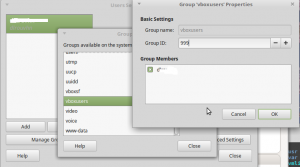
  • First we need to ensure that you USB is working on linux. In order to do this you need to go to users and groups and add yourself to the vboxusers group.
  • addUserGroup
    Then you probably need to logout and login to refresh the groups.

  • On my PC I only have USB 3.0 ports and had to give access to the VM for USB 3.0 on the VM Settings.
  • addUserGroup

  • Now for the filter go to add filters:
  • usbfilter

  • Now remove everything accept the name and verndor tag. The reason for that is that these modems switch modes and then it does not pick it up anymore.
  • It should look like this:
    usbfilter

  • Lastly you should install the USB3.0 Drivers for windows. I installed the Downloads for Intel USB 3.0 eXtensible Host Controller Driver
  • Delphi : Convert a String to TDateTime

    In Delphi concerting string to TDateTime is always an issue for me: Here is the code to help someone.

    [sourcecode language=”pascal” wraplines=”false” collapse=”false”]

    var
    myformat : TFormatSettings;
    theDate : TDateTime;
    begin

    GetLocaleFormatSettings(LOCALE_SYSTEM_DEFAULT, myformat );
    myformat.DateSeparator := ‘/’;
    myformat.TimeSeparator := ‘:’;
    myformat.ShortDateFormat := ‘dd/mm/YYYY hh:nn’;
    theDate := StrToDateTime( ’01/01/2017′,myformat);
    end;
    [/sourcecode]

    Hope this helps someone.

    The inverse is easier:
    [sourcecode language=”pascal” wraplines=”false” collapse=”false”]

    MyStr := FormatDateTime(‘dd/mm/yyyy HH:nn:ss’,theDate));
    [/sourcecode]

    If you have the Project Jedi Components JVCL Delphi Jedi you can use the
    [sourcecode language=”pascal” wraplines=”false” collapse=”false”] JvJCLUtils.StrToDateFmt ( ‘yyyy/mm/dd’, ‘2017/01/01’ );
    [/sourcecode] from the JvJCLUtils.pas file.

    Fixing Timezone Issue on Oracle SQL Developer

    If you login with SQL Developer and you get the following:

    An error was encountered performing the requested operation:

    ORA-00604: error occurred at recursive SQL level 1
    ORA-01882: timezone region not found
    00604. 00000 - "error occurred at recursive SQL level %s"
    *Cause: An error occurred while processing a recursive SQL statement
    (a statement applying to internal dictionary tables).
    *Action: If the situation described in the next error on the stack
    can be corrected, do so; otherwise contact Oracle Support.
    Vendor code 604

    Do the Following:
    edit file
    sqldeveloper\ide\bin\ide.conf
    and add
    AddVMOption -Duser.timezone=”+02:00″
    at the bottom of the file
    OR AddVMOption -Duser.timezone=”GMT+2″

    (Just change it according to your time zone…..)

    Start SQL developer and To fix date time format go to :
    Tools -> Preferences -> database -> nls and change date format to YYYY/MM/DD HH24:MI:SS (Or any of your desired time formats)

    And to fix startup errors go to
    {USER HOME}\AppData\Roaming\SQL Developer
    and rename system4.1.0.19.07 to system4.1.0.18.07

    Xen Client VM to work with Oracle Virtual Box

    To convert my Xen Client VM to Oracle Virtual Box I did the following:
    UPDATE : 30 March 2017
    A more easier way is to export the VM in the normal way that will export a system.vhd file.

    Now just Extract the system.vhd to a folder on the PC. Go then to Oracle Virtual Box, select new VM
    NewVM

    Make sure you select Use Existing Virtual Hard Disk and browse to the system.vhd.

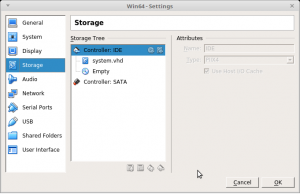
    Click on the Create VM. After that BEFORE YOU RUN IT, go to settings and ADD an IDE controller.
    After that add the system.vhd to the IDE controller and remove it from the SATA Controller.
    it should look like:
    Storage Settings VM

    Save and start the VM,it should work fine.

    I have exported my Windows 7 Xen Client VM using XenConvert XenConvert_Install2.5.exe.
    Although this is used for P2V I used it to convert my Xen Virtual Machine to Open Virtualization Format.
    Note this will ask you to specify the type and select Open Virtualization Format.

    When the process is done you will end up with YourVirtualMachineName.ova, if you try to import into Virtual Box you will get an error:

    The Appliance YourVirtualMachineName.ova could not be imported.
    Document labelled UTF-16 but has UTF-8 content.
    Location: ‘YourVirtualMachineName.ova’, line 1 (0), column 36.

    Details:
    Error code: VBOX_E_FILE_ERROR (0x80BB0004)
    Component: Appliance
    Interface: IAppliance {SOMEXXXXXNUMBER}

    Now I untarred the .ova by typing tar -xvf YourVirtualMachineName.ova on your linux console. (Maybe try 7zip if you are running windows).

    This will leave you with a YourVirtualMachineName.vhd. You can use one of the many Other Links on the internet to see how to import a VHD to virtual box. Now the problem is when you start it, it starts up and then a quick blue screen flash and it dies. Mine gave Stop error code 0x0000007B I think…

    To solve this stop the virtual machine. Go to the Storage settings. Delete the SATA Controller with the attached VHD disk. Dont delete the disk though just the connection to the SATA. Then go and create a new IDE controller. Add the Virtual Disk YourVirtualMachineName.vhd and remember to also add an CD Rom. Whola!